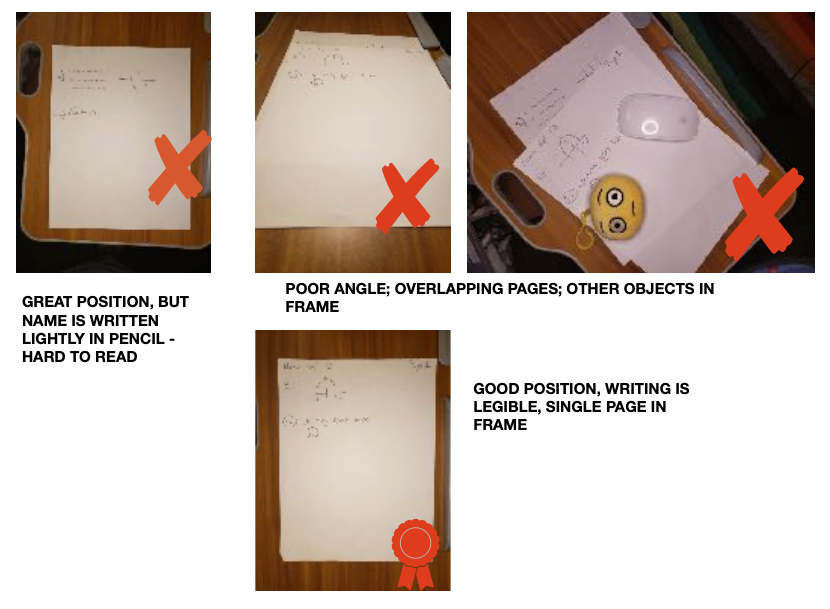
You’ve finished your exam and are ready to submit your answers. To avoid a delay in grading or risk losing valuable points, be sure to upload clear, legible images of your answers. We have some tips to help.
- Use a dark pencil or pen to write your answers. Answers written in dark pen/pencil will show best on white paper.
- Make sure your paper is the only object in frame. Overlapping pages, distracting objects, fingers covering part of the lens are all things that can make it hard for graders to focus on your answers.
- Lay your page on a flat, dark or contrasting surface and take the picture from above. This makes it easier to read your answers.
- Check your image for clarity. Shaky or blurred images mean your work can’t be graded easily. Think slow and steady for your hands.
- (Optional) We do ask that you use an app to scan your pages and compile them into a single PDF document.
- If your course uses Gradescope we recommend you use their mobile app scanner.
Other Scanners:
- Adobe Scan is available from Adobe.
- For iOS devices - Scannable by Evernote available in the App Store.
- For Android devices - Genius Scan available in the Google Play Store.